
Prerequisites
Before you begin, make sure that:
ChatBox is installed
Download and install the version for your operating system from ChatBox GitHub, or visit the ChatBox official website
You have obtained a MaiToken API key
Log in to the MaiToken Console to obtain your API key (starting with
sk-)
Tip: If you do not yet have a MaiToken account, register at MaiToken and obtain an API key first.
Step 1: Launch ChatBox and Begin Configuration
When launching ChatBox for the first time or adding a new AI provider:
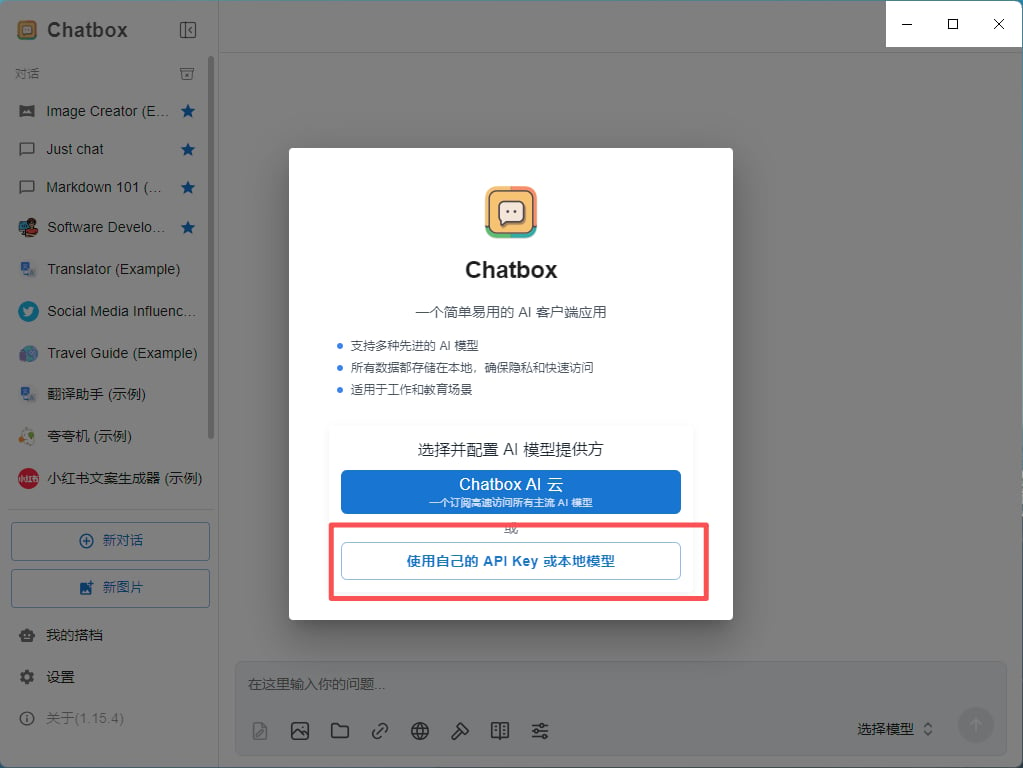
- Launch the ChatBox application
- If this is your first time using it, the configuration wizard will appear automatically
- Click the "Use My Own API Key or Local Model" button
- If you have already completed the initial configuration, click the ⚙️ Settings icon in the lower-left corner, or use the keyboard shortcut
Ctrl+,(Windows/Linux) /Cmd+,(macOS)
Step 2: Configure the MaiToken API
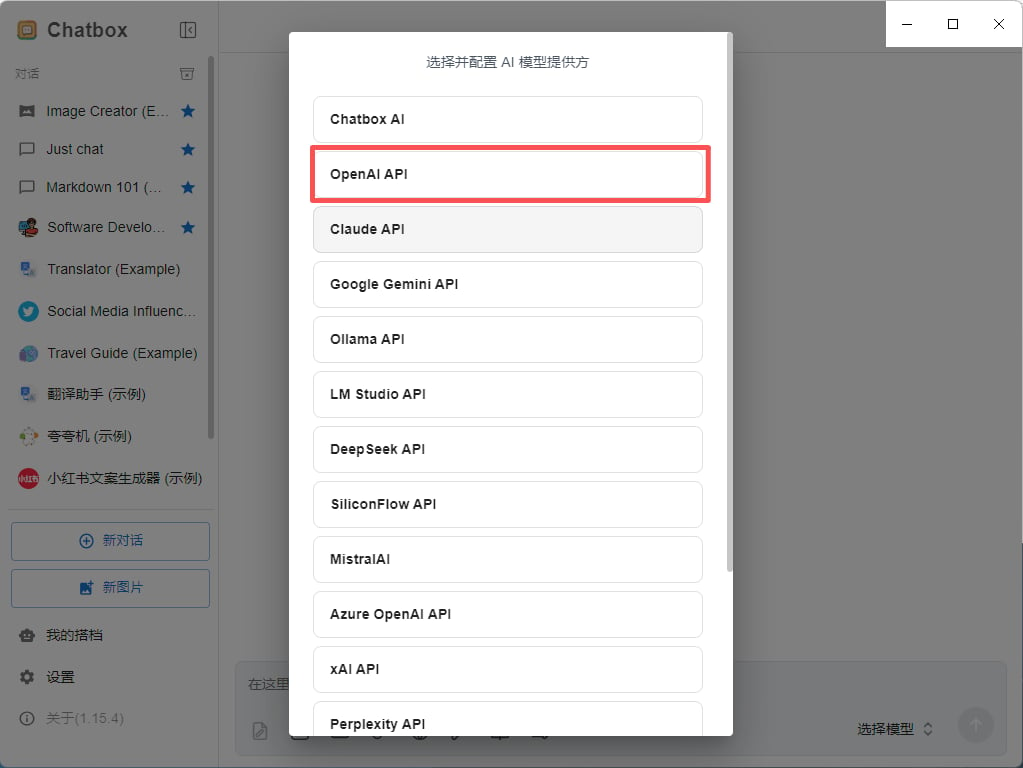
2.1 Select an AI Model Provider
On the settings page:
- Locate the AI Model Provider setting
- From the drop-down menu, select OpenAI API (for GPT series models), Claude API (for Claude series models), or Gemini API (for Gemini series models)
2.2 Configure API Information
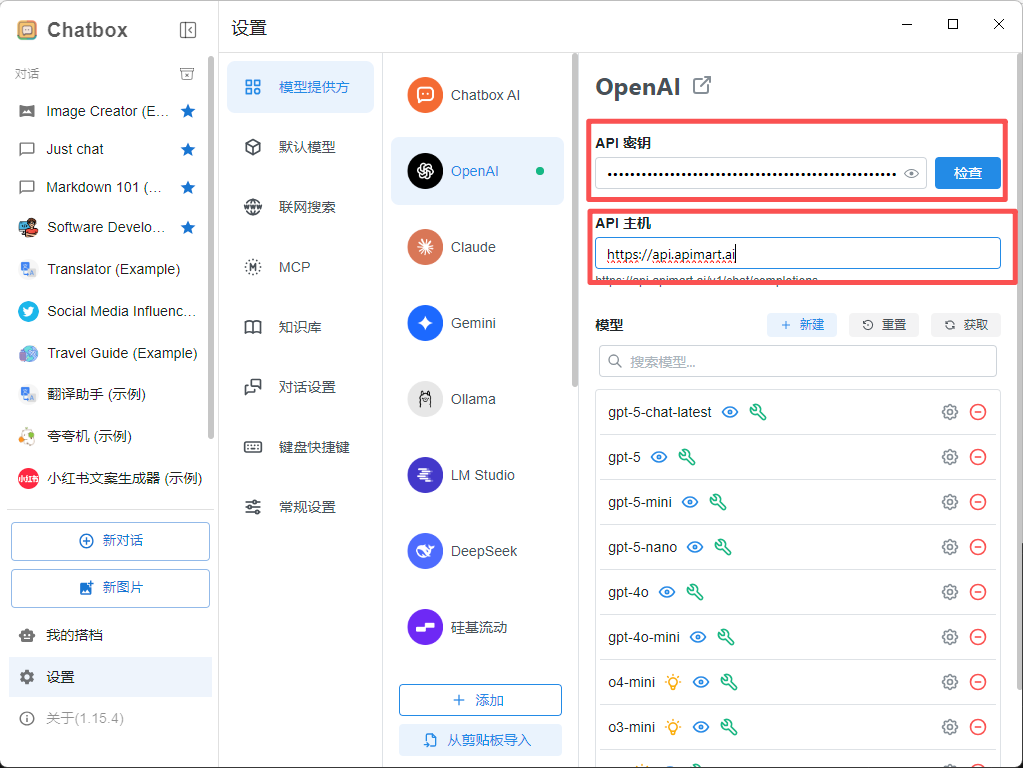
After selecting OpenAI API, enter the following configuration details:
| Configuration Item | Value |
|---|---|
| API Key | Your MaiToken API key (sk-xxxxxxxxxxxx) |
| API Host or API Domain | https://api.maitoken.net |
After selecting Claude API, enter the following configuration details:
| Configuration Item | Value |
|---|---|
| API Key | Your MaiToken API key (sk-xxxxxxxxxxxx) |
| API Host or API Domain | https://api.maitoken.net/v1 |
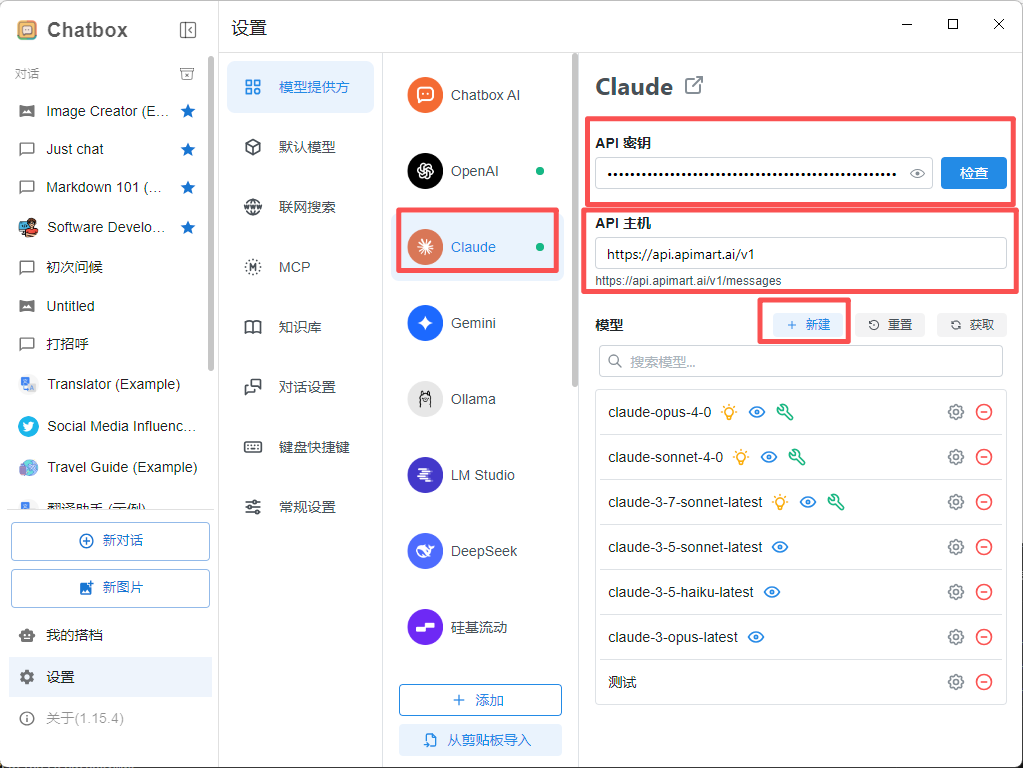
After selecting Gemini API, enter the following configuration details:
| Configuration Item | Value |
|---|---|
| API Key | Your MaiToken API key (sk-xxxxxxxxxxxx) |
| API Host or API Domain | https://api.maitoken.net/ |
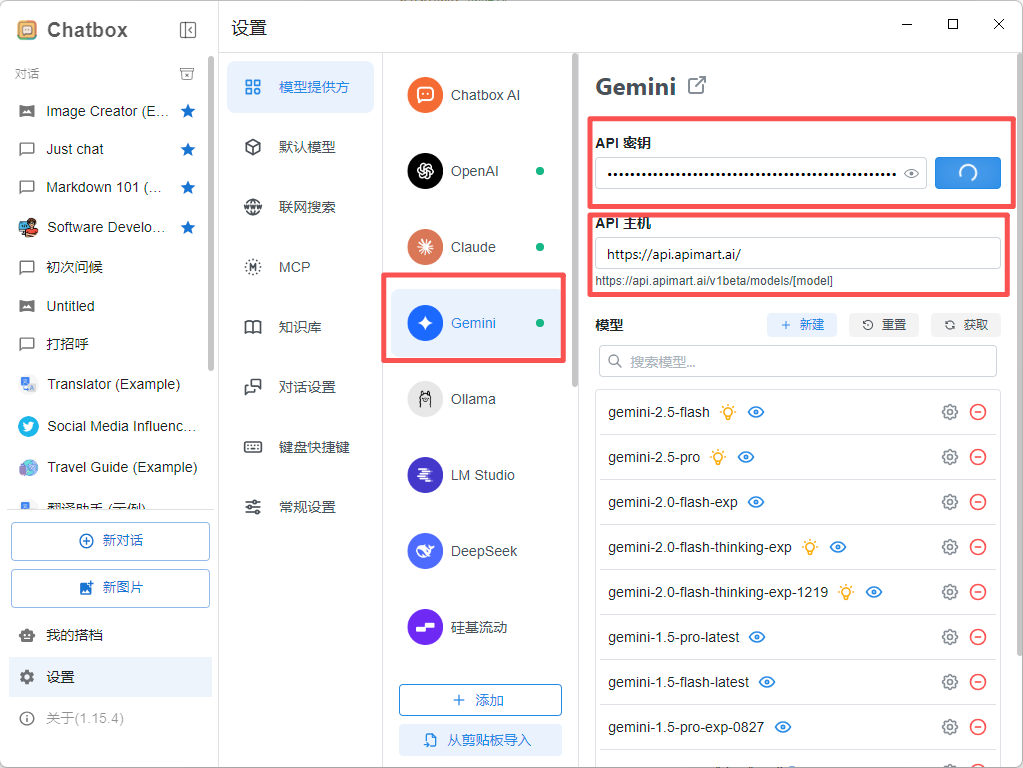
Important Notes:
- When using OpenAI API, set API Host to
https://api.maitoken.net(without the/v1suffix) - When using Claude API, set API Host to
https://api.maitoken.net/v1(including the/v1suffix) - When using Gemini API, set API Host to
https://api.maitoken.net/(without the/v1suffix) - The API Key must be obtained from the MaiToken Console and must start with
sk- - Make sure your API key has sufficient balance
2.3 Select a Model
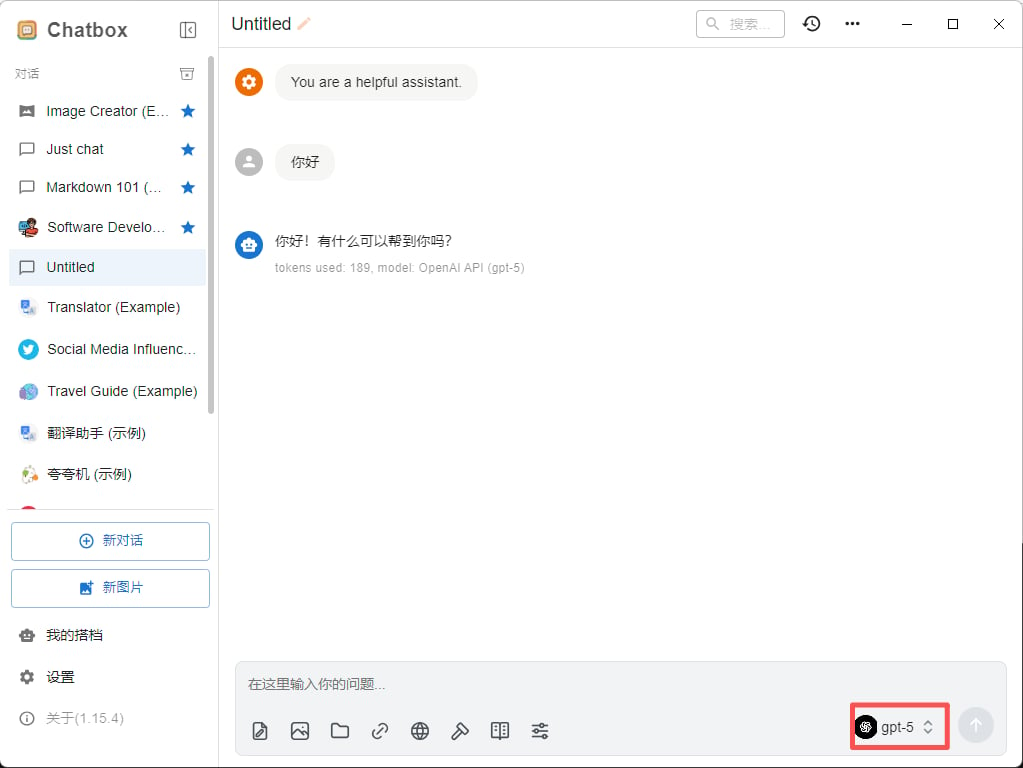
After completing the configuration, select the model you want to use from the Model dropdown menu:
Recommended Models:
| Model Name | Model ID | Features |
|---|---|---|
| GPT-5 | gpt-5 |
The latest and most powerful model |
| GPT-4o | gpt-4o or chatgpt-4o-latest |
High-quality conversations |
| GPT-4o Mini | gpt-4o-mini |
Fast and economical |
| Claude Sonnet 4.5 | claude-sonnet-4-5-20250929 |
Excellent for coding and reasoning |
| Claude Haiku 4.5 | claude-haiku-4-5-20251001 |
Fast responses |
| Gemini 2.0 Flash | gemini-2.0-flash-exp |
Multimodal support |
Special Instructions for Using Claude Models: If you choose to use a Claude model (such as claude-sonnet-4-5-20250929 or claude-haiku-4-5-20251001), you need to complete the following additional configuration:
- Switch to the Claude API provider:
- In the settings, change AI Model Provider to Claude API
- Keep the API Host set to
https://api.maitoken.net/v1 - Use your MaiToken API key for the API Key (
sk-xxxxxxxxxxxx)
- Or add custom request headers (if using the OpenAI API provider):
- Some versions of ChatBox support adding custom Headers
- Add the following request header in the advanced settings:
anthropic-version: 2023-06-01
Recommended Approach: Select OpenAI API when using GPT models, Claude API when using Claude models, and Gemini API when using Gemini models.
Performance Recommendations:
- 💰 Best value:
gpt-4o-mini,claude-haiku-4-5-20251001 - 🚀 High performance:
gpt-5,gpt-4o,claude-sonnet-4-5-20250929 - ⚡ Fast responses:
gemini-2.0-flash-exp,gpt-4o-mini
Step Three: Start Using ChatBox
After completing the configuration, you can start using ChatBox to chat with AI:
- Return to the main interface
- Enter your question or request in the input box
- Press
Enteror click the Send button - AI will use MaiToken's models to generate a response for you
Adjust Model Parameters (Optional)
You can adjust the following parameters as needed:
| Parameter | Description | Recommended Value |
|---|---|---|
| Temperature | Controls output randomness | 0.7 (creative) / 0.3 (precise) |
| Max Tokens | Maximum output length | 2000-4000 |
| Top P | Nucleus sampling parameter | 0.9 |
Advanced Features
Managing Multiple Conversations
ChatBox supports creating multiple conversation sessions:
- Click the New Conversation button
- Create separate sessions for different tasks
- Switch between conversations in the conversation list on the left
Saving and Exporting Conversations
- Right-click a conversation session
- Select the Export option
- You can export it in Markdown, JSON, and other formats
Using Prompt Templates
- Find the Prompts or Prompts settings in the settings
- Save frequently used prompt templates
- Quickly invoke preset prompts during conversations
Frequently Asked Questions
Q1: Unable to connect to the MaiToken service?
Solution:
- Check the API Host:
- Ensure that it is set to
https://api.maitoken.net - Do not add
/v1or any other path
- Ensure that it is set to
- Verify the API Key:
- Confirm that the API Key is correct and starts with
sk- - Check whether the key is valid in the MaiToken Console
- Confirm that the API Key is correct and starts with
- Check the network connection:
- Ensure that you can access
https://api.maitoken.net - If you are in mainland China, you may need to configure a proxy.
- Ensure that you can access
Q2: MaiToken Models Are Not Displayed in the Model List?
Solutions:
- Enter the model name manually:
- Enter the model ID directly in the model input field
- For example:
gpt-4o,gpt-4o-mini, orclaude-sonnet-4-5-20250929
- Refresh the model list:
- Restart the ChatBox application
- Reconfigure the API information
Q3: An Error Appears During a Conversation?
Common errors and solutions:
| Error Message | Cause | Solution |
|---|---|---|
401 Unauthorized |
The API Key is invalid or expired | Obtain a new API Key and update the configuration |
429 Too Many Requests |
The request rate limit was exceeded | Wait a moment and try again |
500 Internal Server Error |
Temporary server issue | Wait a few minutes and try again |
insufficient_quota |
Insufficient account balance | Go to the console and add funds |
Q4: How Can I View API Usage and Costs?
Sign in to the MaiToken Console to view:
- 📊 API call statistics
- 💰 Cost details
- 📈 Usage trend charts
- 🔍 Detailed request logs
Q5: Which Platforms Does ChatBox Support?
ChatBox supports multiple platforms:
- 🪟 Windows - Windows 10/11
- 🍎 macOS - macOS 10.15+
- 🐧 Linux - Major distributions
- 🌐 Web - Browser version
Usage Tips
1. Keyboard Shortcuts
Make full use of ChatBox keyboard shortcuts to improve efficiency:
| Shortcut | Function |
|---|---|
Ctrl/Cmd + Enter |
Send a message |
Ctrl/Cmd + N |
Start a new conversation |
Ctrl/Cmd + K |
Search conversations |
Ctrl/Cmd + , |
Open settings |
Ctrl/Cmd + / |
Show keyboard shortcut help |
2. Optimize Prompts
Write better prompts to receive better responses:
❌ Poor prompt:
Help me write some code✅ Good prompt:
Please help me write a Python function that does the following:1. Accepts a list of strings as input2. Filters out strings shorter than 3 characters3. Returns the results sorted alphabeticallyPlease include detailed comments and example usage3. Use Conversation History
ChatBox saves your conversation history:
- The AI remembers the context within the current session
- You can ask follow-up questions based on previous responses
- It is suitable for in-depth exploration and iteration
4. Switch Models
Choose the appropriate model for each task:
- Writing tasks - Use
gpt-4oorclaude-sonnet-4-5 - Coding tasks - Use
claude-sonnet-4-5 - Quick Q&A - Use
gpt-4o-mini - Multimodal tasks - Use
gemini-2.0-flash-exp
Features
With ChatBox + MaiToken, you can:
- 💬 Enjoy seamless conversations - Real-time streaming output provides a smoother experience
- 🎯 Manage multiple conversations - Manage multiple independent conversations simultaneously
- 💾 Store data locally - Conversation history is stored locally to protect your privacy
- 📤 Export conversations - Export conversation history in multiple formats
- 🎨 Use a clean interface - A clean and attractive user interface
- 🔒 Free and open source - Fully open source and free to use
- 🌍 Work across platforms - Supports Windows, macOS, and Linux
- 🚀 Enjoy excellent performance - A lightweight application that runs smoothly
Support and Help
If you encounter any issues while using the service: